V3 – MySQL Server Setup

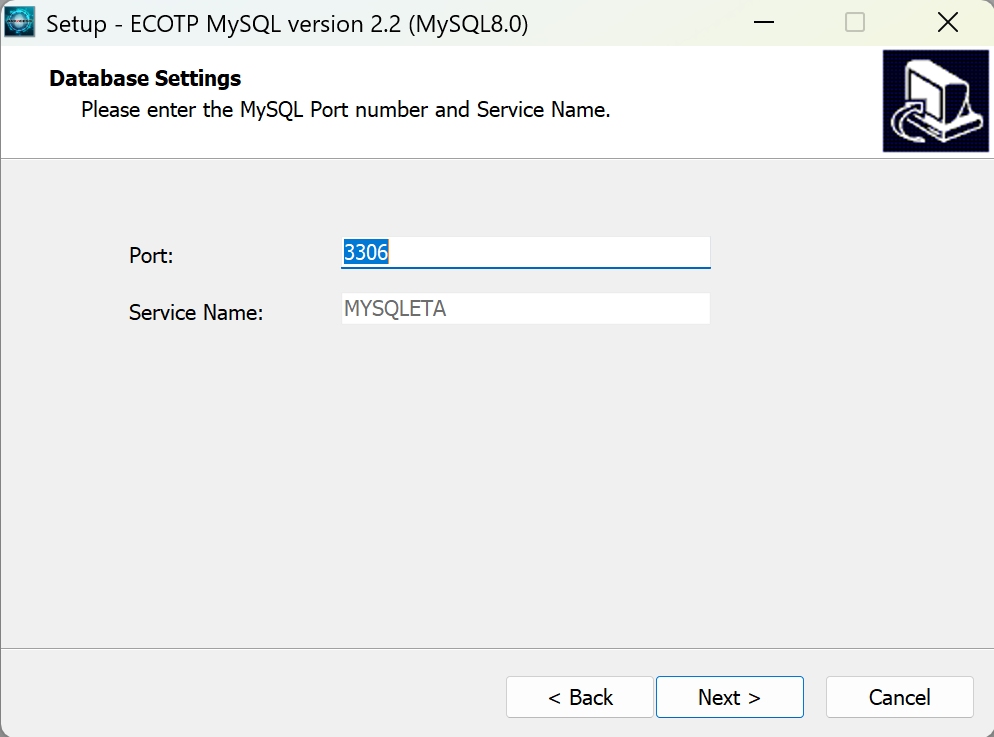
MySQL Server setup

  • 1) Launch BIOXCESS TA3. Right click on the desktop icon and Run As Administrator
  • 2) Select "This is Server PC"

Fresh SETUP

  • 1) For fresh installation without having MySQL Server and Database created, please do not check boxes. We will also talk about the Setup with MySQL Server which previously installed
  • 2) You may set the Database name, User and Password as follows
  • 3) Click "Install and create MySQL database"
  • 4) Select "I accept the agreement", click Next
  • 5) Click a couple of Next, including Folder Exist, click Yes
  • 6) Click Install to start the MySQL Server installation
  • 7) Once the MySQL Server has been installed, click Finish
  • 8) It will then create the database. Please wait, it will take a while
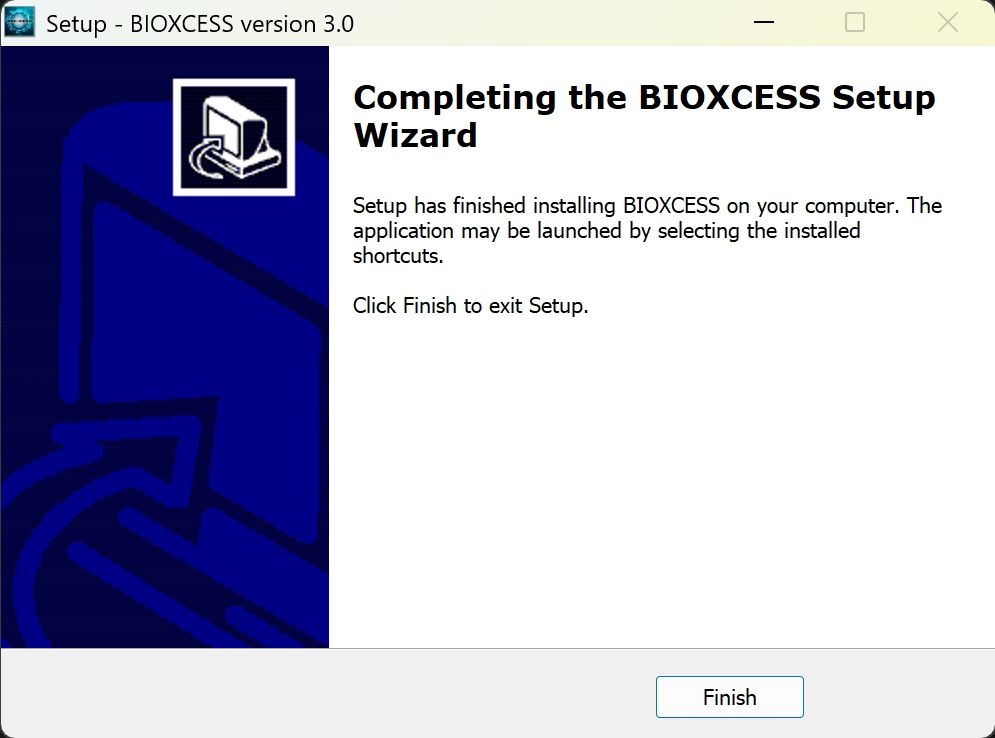
  • 9) When the database is created, click Next to finish the Setup
  • 10) Select "No, I will restart the computer later", click Finish
  • 11) The Login screen appears and you may start using the BIOXCESS TA3

with mysql server already installed

  • 1) If MySQL Server has been previously installed, Setup will prompt you to create the database manually
  • 3) Right click on MySQL ODBC Connector 8.0, select Run as Administrator to install it
  • 4) Back to the Setup, check "Have you previously installed MySQL Server on this computer?"
  • 5) Make sure the MySQL Server username and password have been entered correctly
  • 6) Click on Create Database
  • 7) Please wait, it will take a while to create the database with all the tables
  • 8) When the database is created, click Next to finish the Setup
  • 9) The Login screen appears and you may start using the BIOXCESS TA3

Software VERSION

Software Login

  • 1) Right click to run BIOXCESS software as Administrator
  • 2) User ID: admin; Password: admin

Add Devices

  • 1) Device Setup
  • 2) Terminal Setup
  • 3) Add
  • 4) Activate device
  • 5) Description - Your preferred device name. It can be Outlet Name, Branch Location, Door Location, etc
  • 6) Serial Number - You can get device serial number from your device. Steps to get serial number from device: Menu -> System Info -> Device Info
  • 7) Model - Select your device model
  • 8) IP Address - The IP Address that has been set at your device
  • 9) Device ID - A random number will be assigned
  • 10) Test
  • 11) Network Connection
  • 12) If you managed to read the device information, the connection is good. Press Close. Proceed with the next step, press Activate Now

* For users who download attendance data via thumb drive and have more than one device, please ensure that the Device ID set on each device matches the ID set in the software.
* This consistency allows the system to accurately identify the device location based on its ID. You can assign or tag the Device ID directly on the device by navigating to: Menu -> Comm -> PC Connection -> Device ID