-
2) Unzip "BIOXCESSTA3.zip"
-
3) In the BIOXCESSTA3 unzipped folder, run "Setup.exe" to install BIOXCESS TA3 Software (Right Click on "Setup.exe", select Run as administrator)
-
4) Select "I accept the agreement", click Next
-
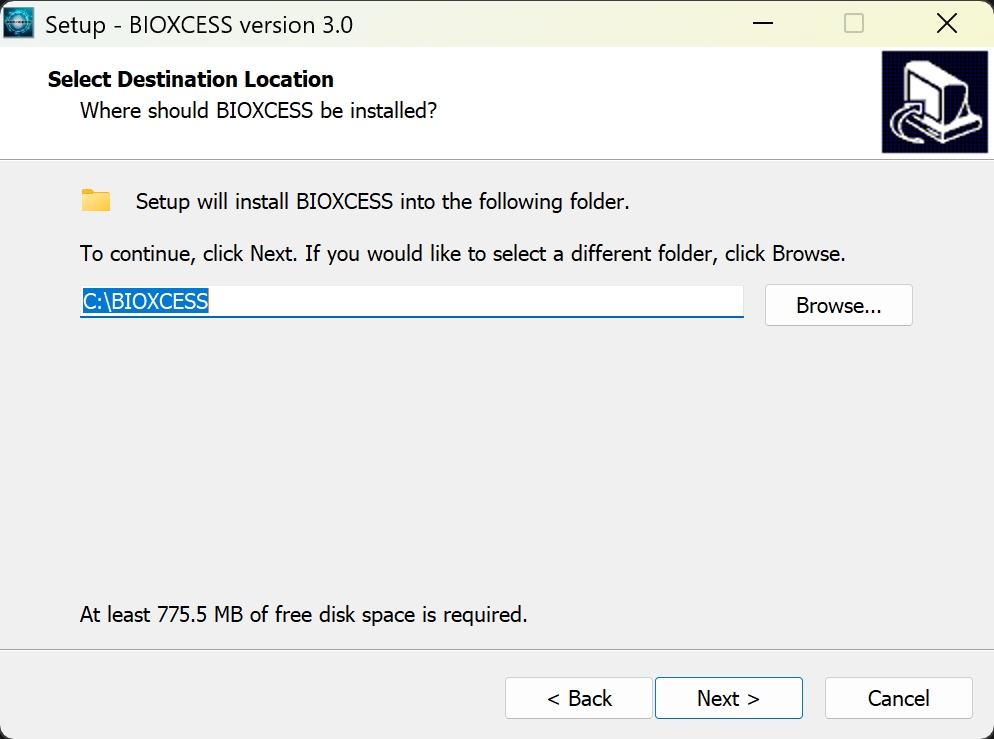
5) Accept the default folder as "C:\BIOXCESS", click Next
-
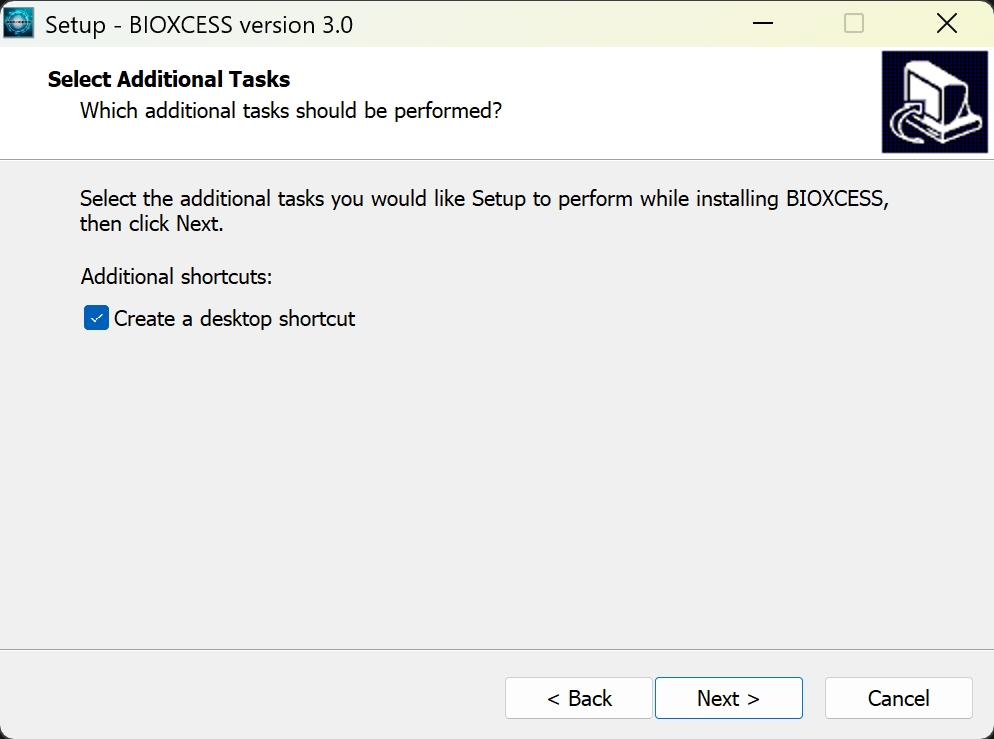
6) Check "Create a desktop shortcut", click Next
-
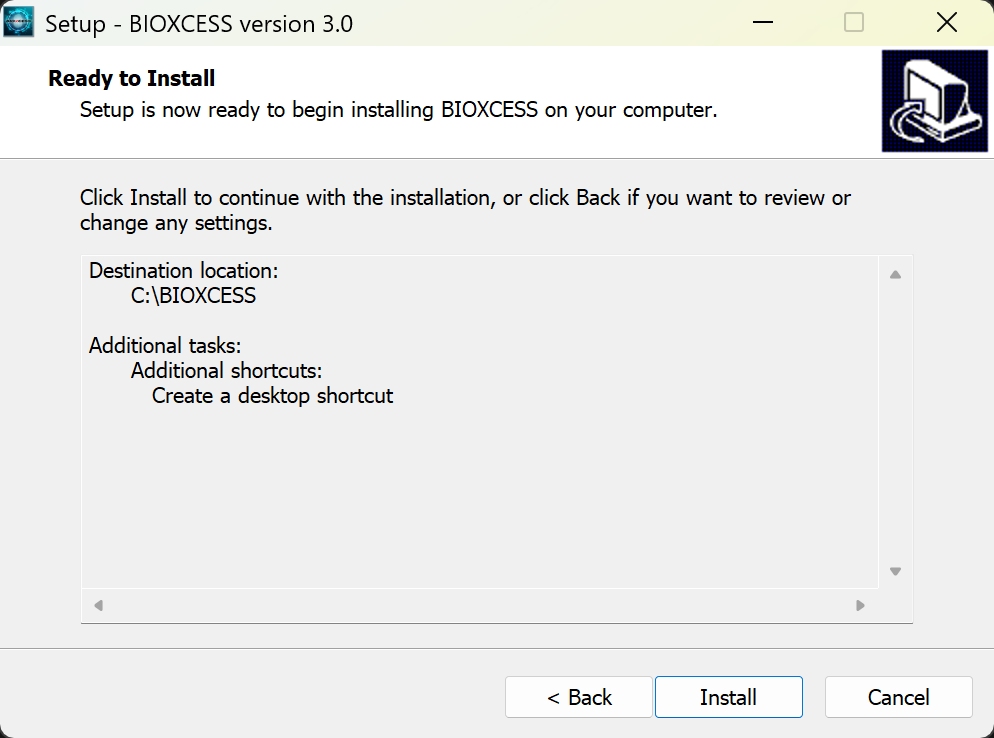
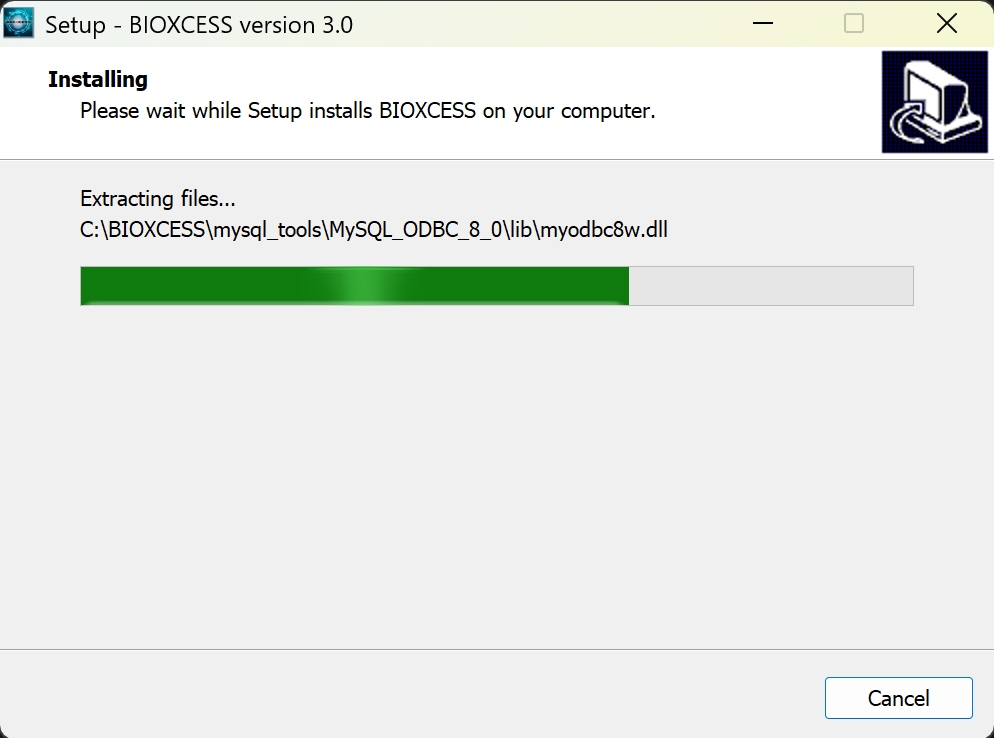
7) When ready to install, click Install
-
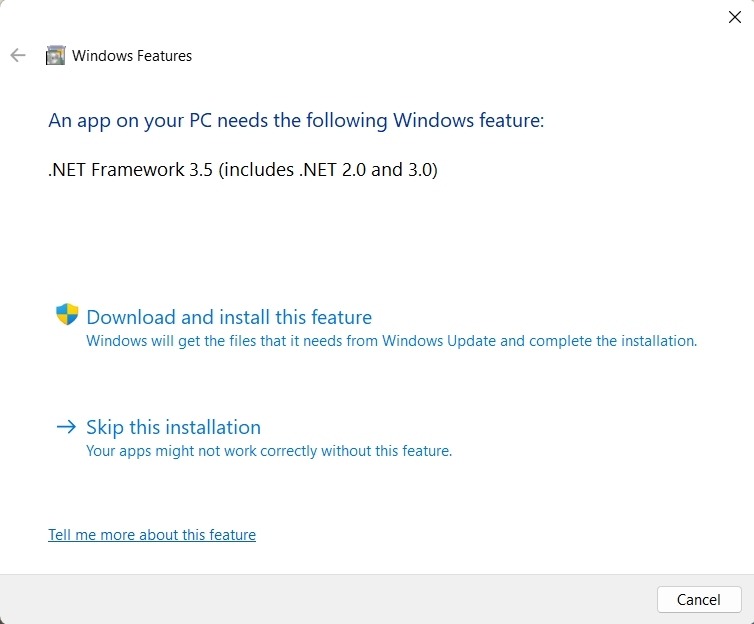
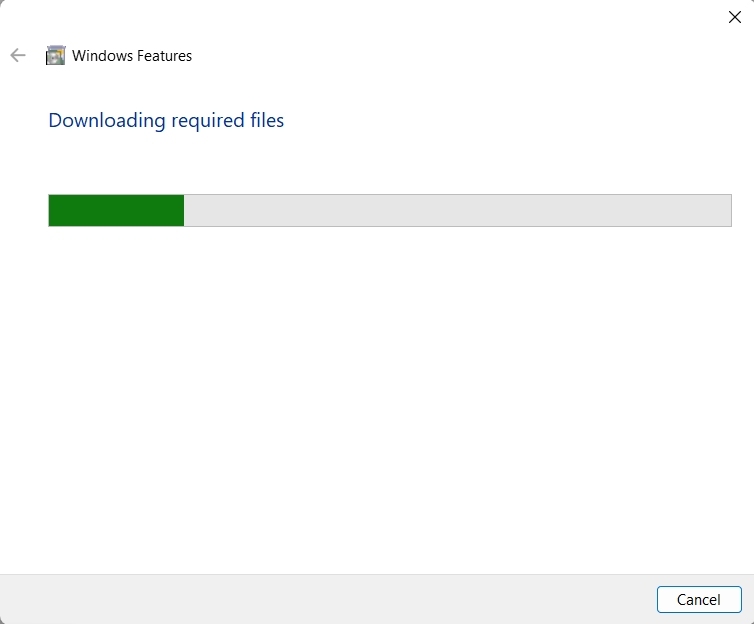
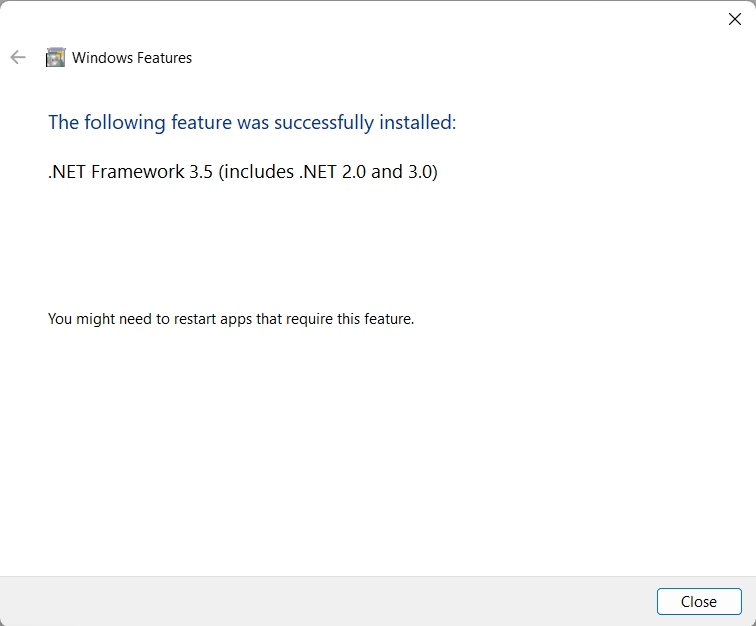
8) If .NET Framework is prompted to download and install, please proceed
-
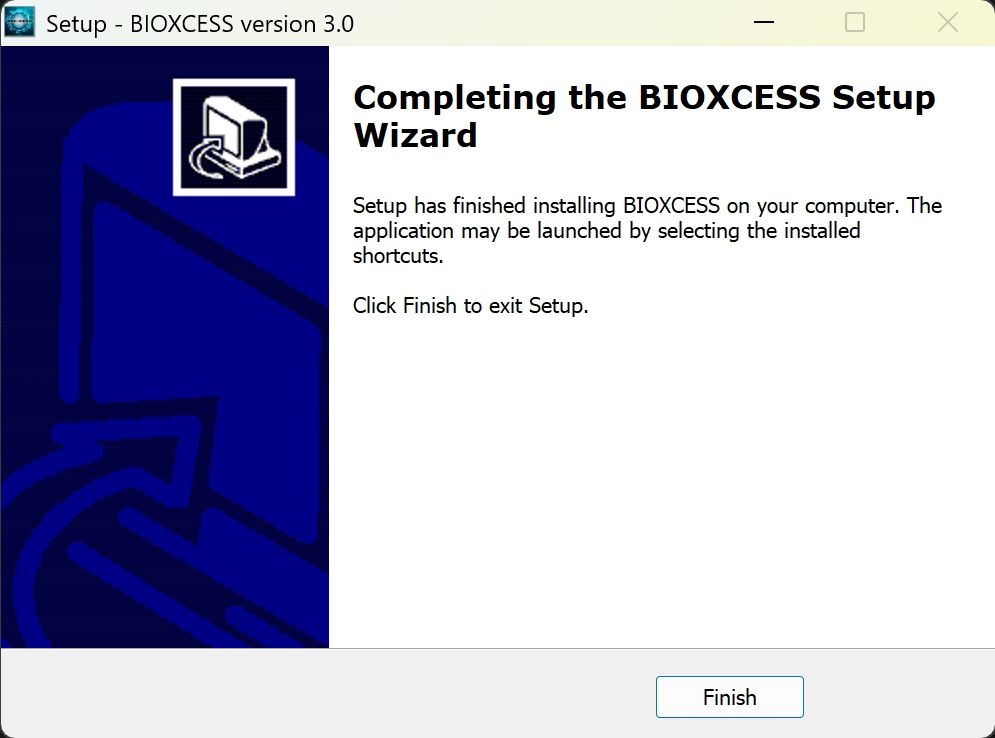
9) Once it is completed, click Finish
-
10) Do not run BIOXCESS TA3 Software for now, update to the latest version in the following steps
-
11) In the BIOXCESSTA3 unzipped folder, you can find "BIOXCESS3_UPDATE.exe" inside "update" folder
-
12) Run "BIOXCESS3_UPDATE.exe" (Right Click on "BIOXCESS3_UPDATE.exe", select Run as administrator)
-
13) Complete. Click Finish. You may now run the BIOXCESS Software with the icon on Desktop (Right Click on BIOXCESS icon, select Run as administrator). Please carry on with the Setup of the MySQL Server or Client for BIOXCESS TA3