V3 – Create URL To Enroll Facial Recognition via Mobile Phones
  • 1) Right click to run BIOXCESS software as Administrator
  • 2) User ID: admin; Password: admin

Create url for face enrolment
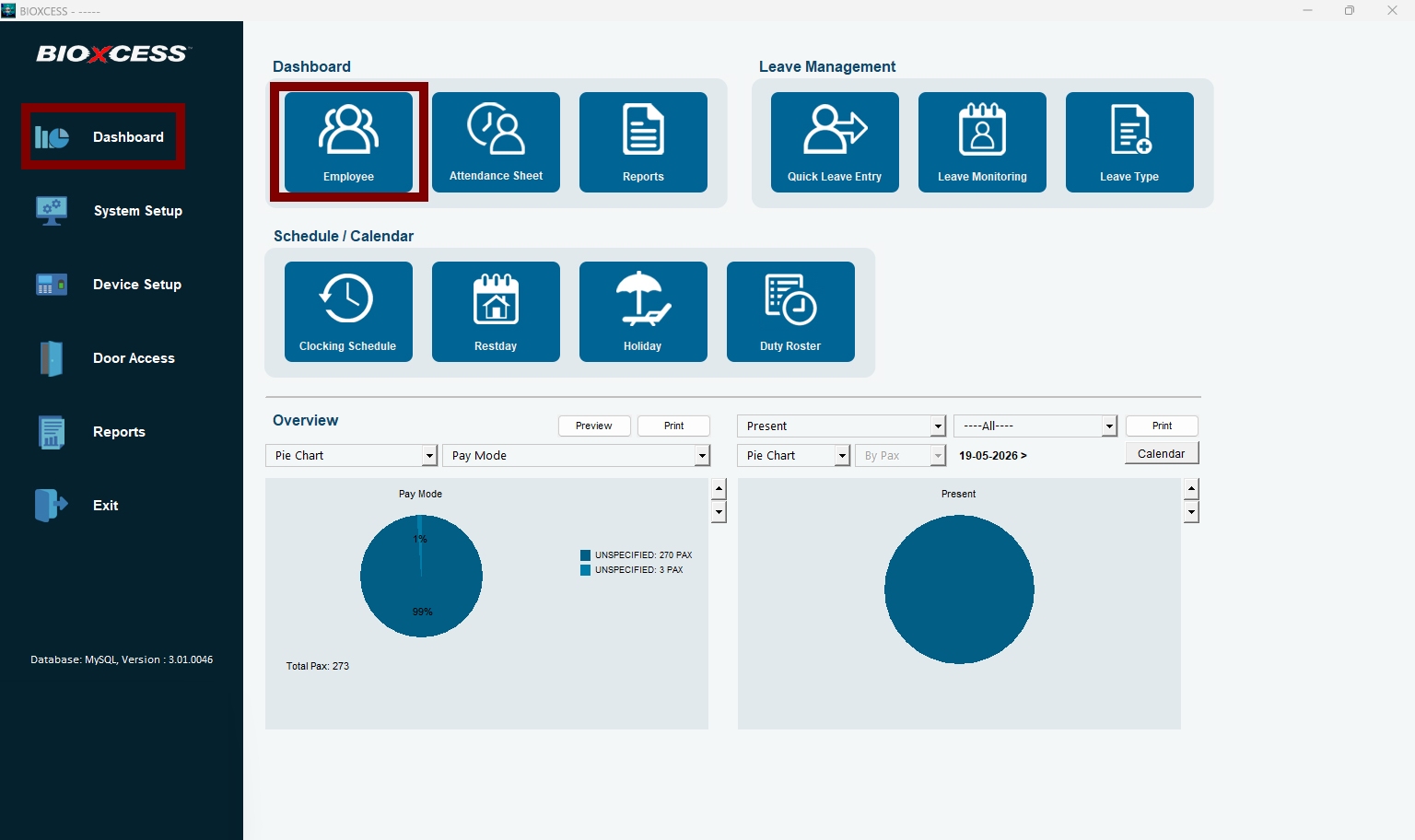
  • 1) Click on "Dashboard"
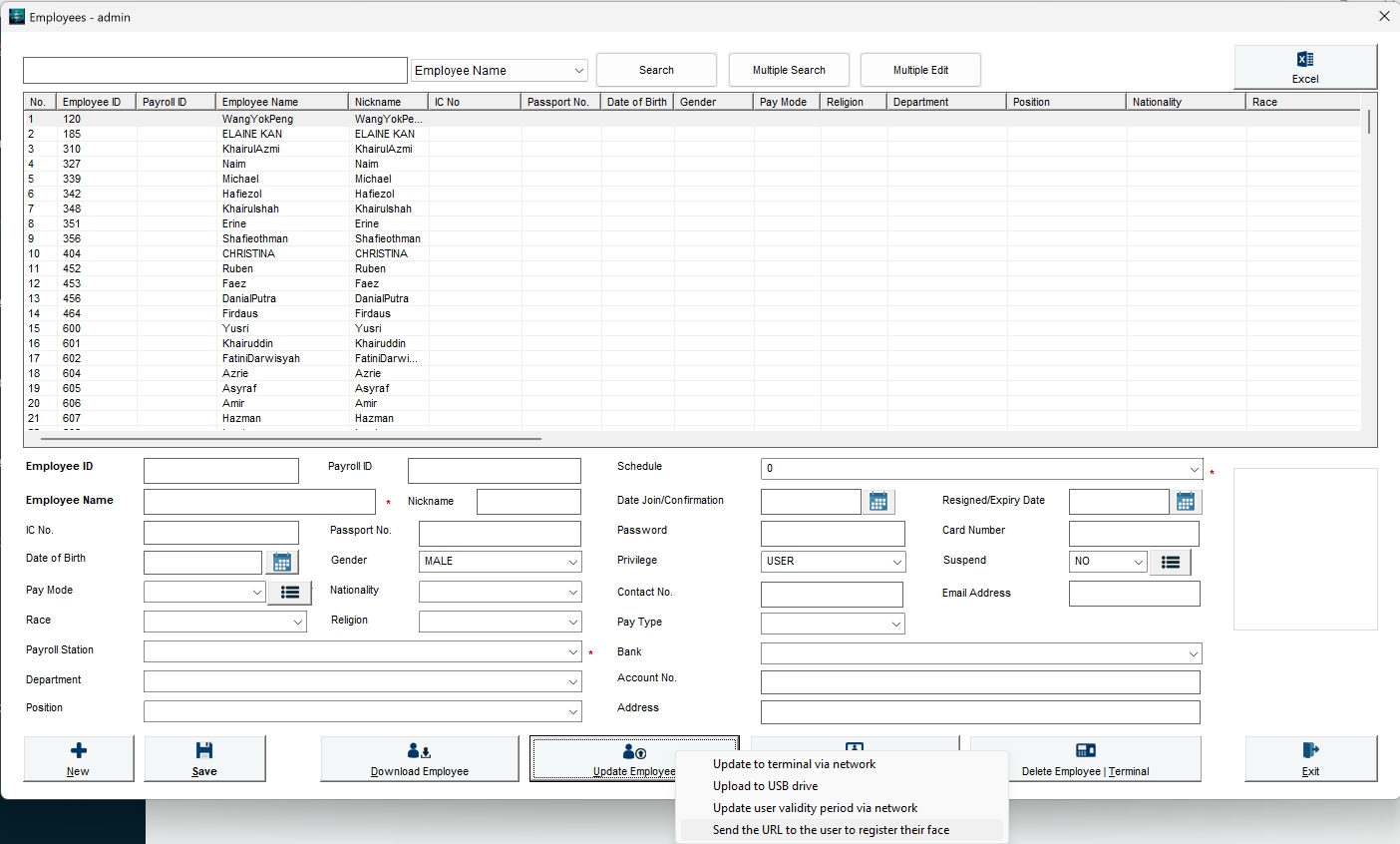
  • 2) Select "Employee"
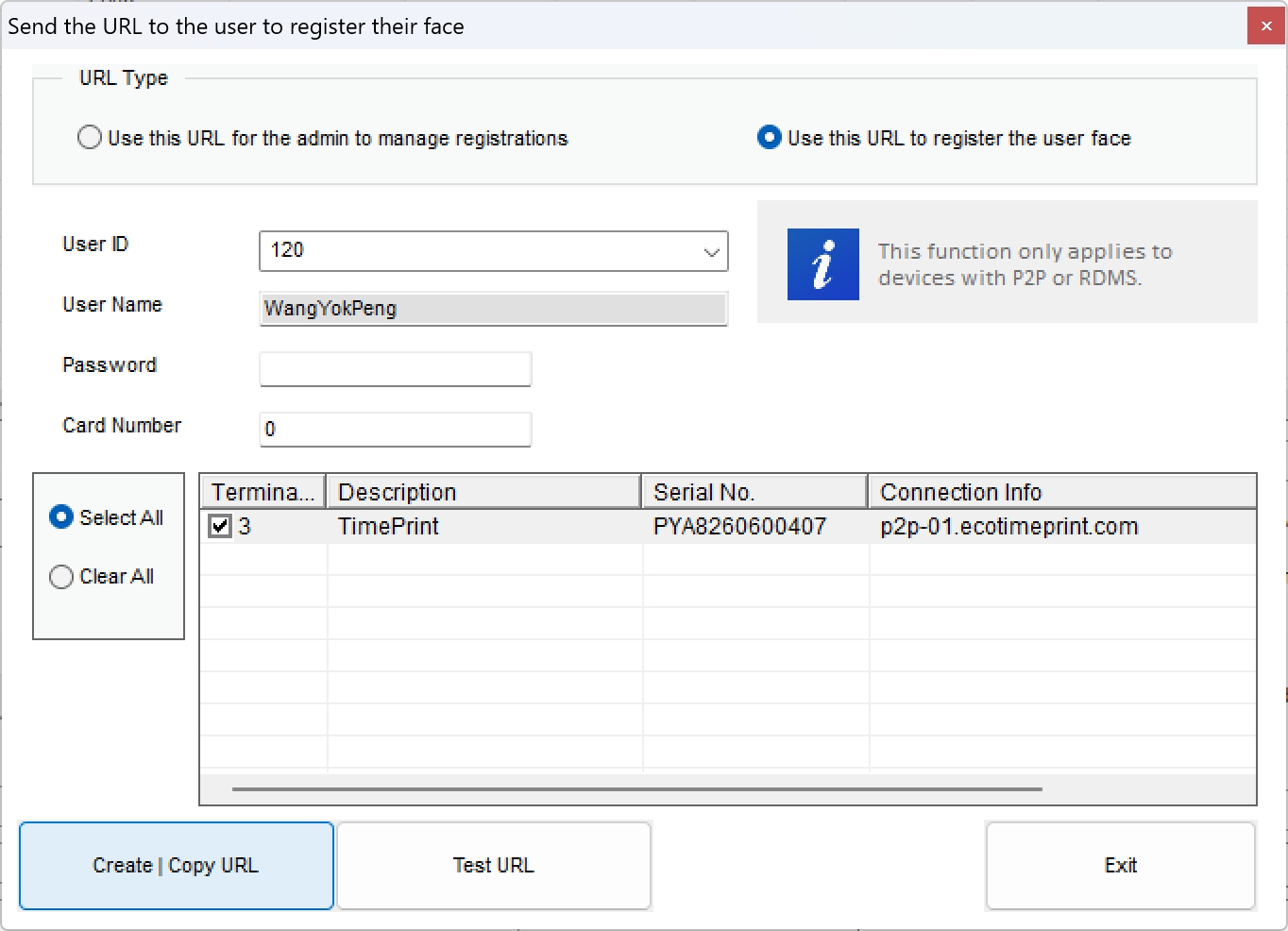
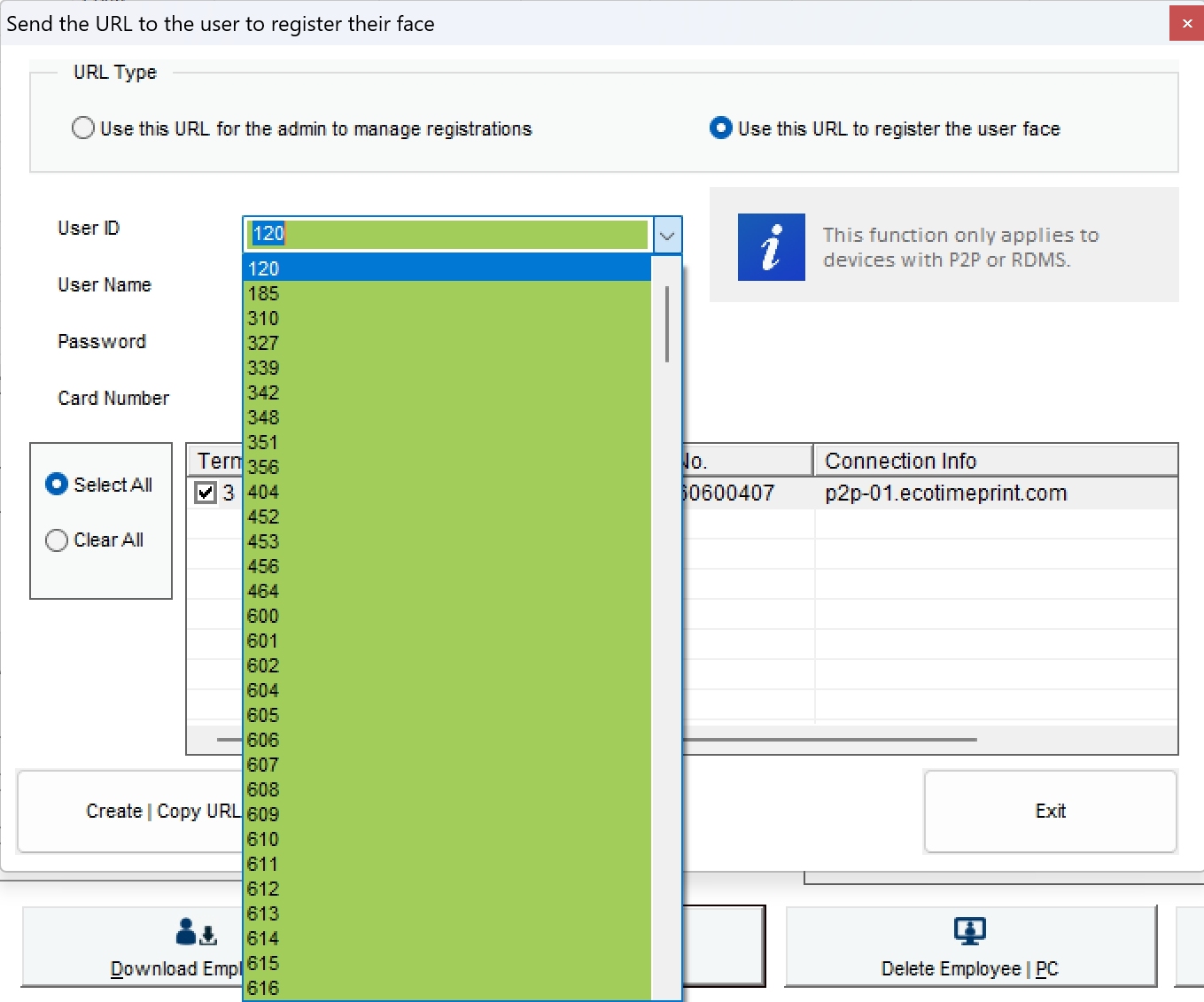
  • 3) Press on "Update Employee" and select "Send the URL to the user to register their face"
  • 4) Please ensure that the desire User ID and Terminal have been selected correctly
  • 5) Click on "Create | Copy URL"
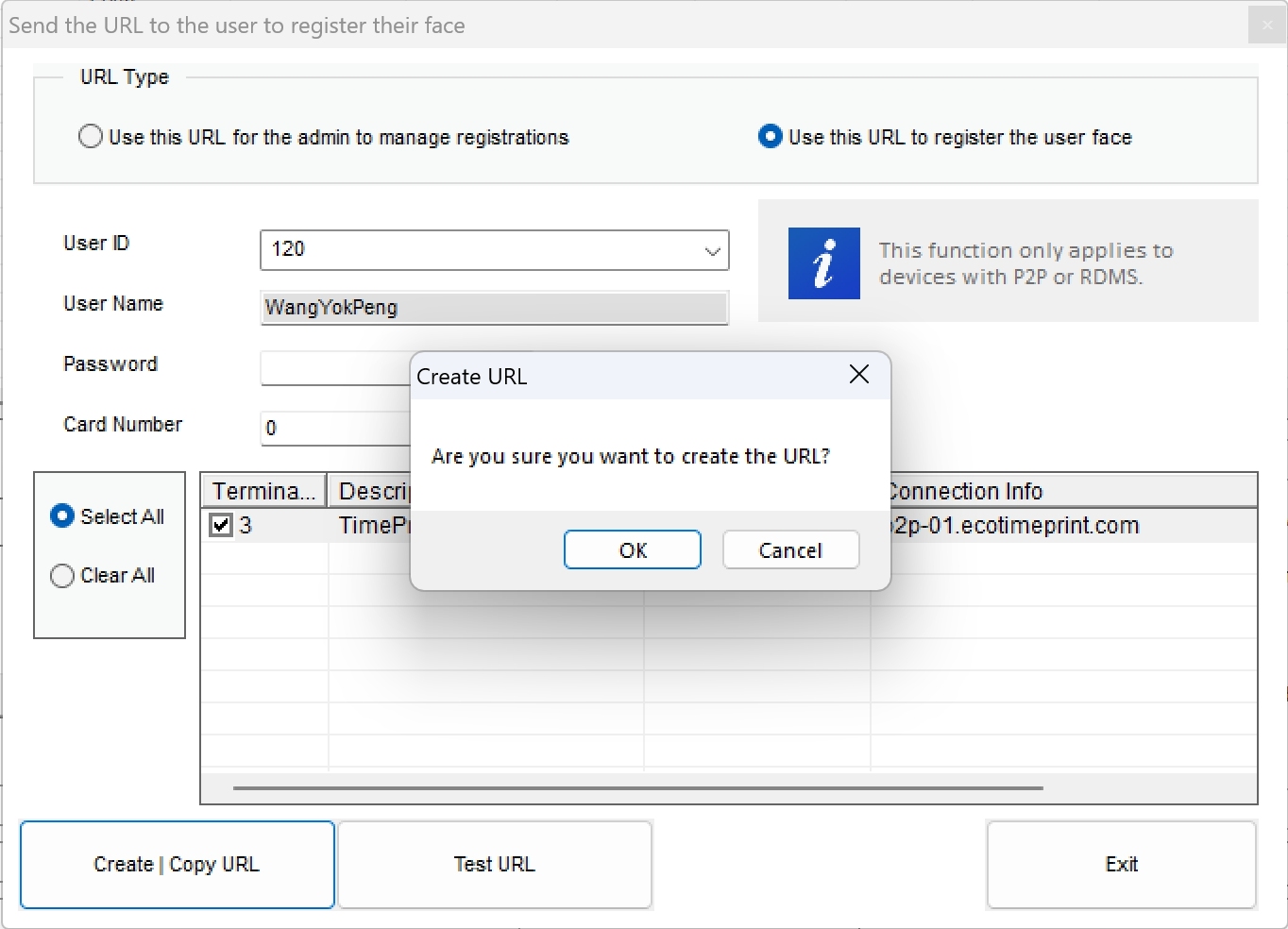
  • 6) Select OK to proceed to create URL
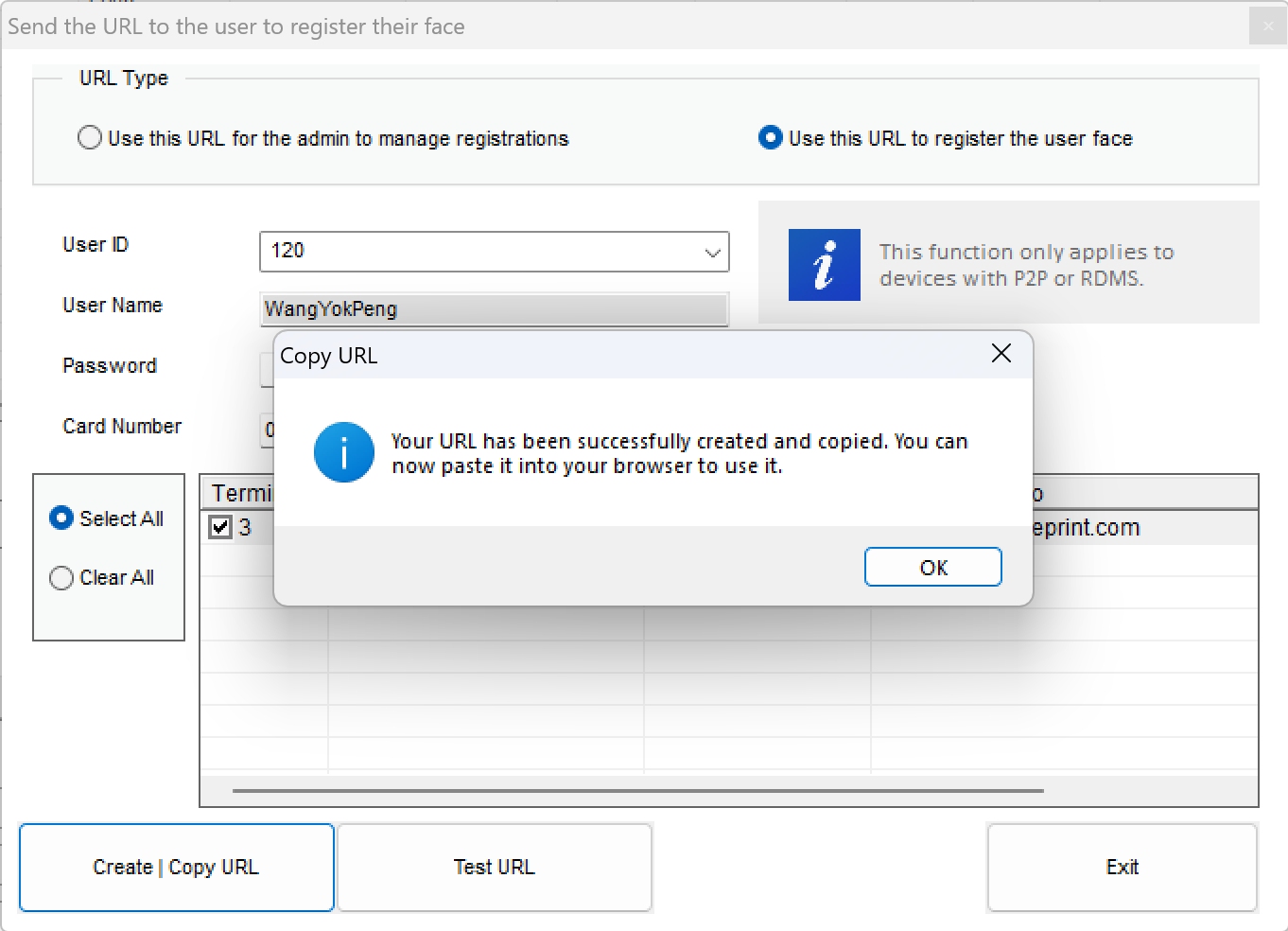
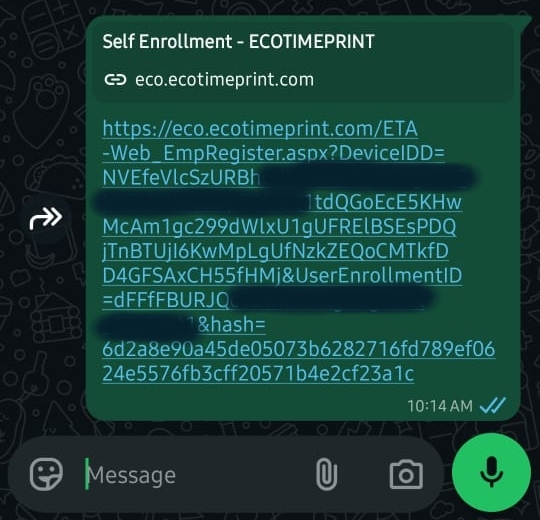
  • 7) The URL will be saved into Windows Clipboard to paste on your messaging tool and send it over to your user's mobile phone
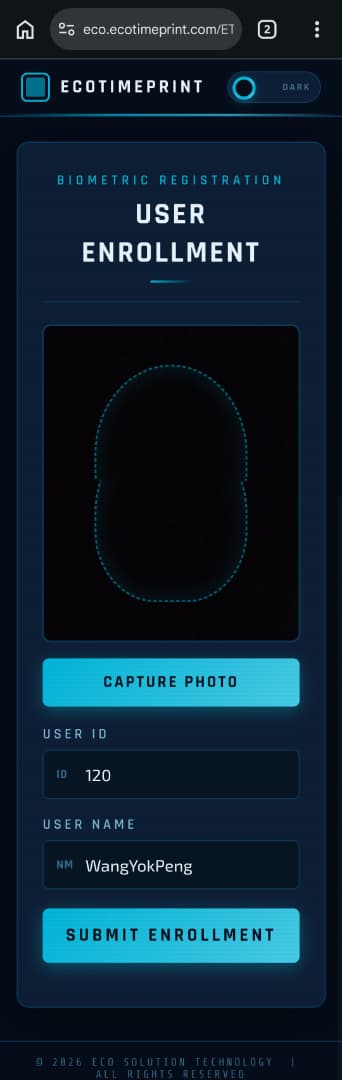
  • 8) User can now open the message on the mobile phone and launch the URL
  • 9) Please ensure that the URL is correctly sent and received by checking on the User ID and Name
  • 10) Press on the "Capture Photo" when the face is correctly positioned, continue to press on the "Submit Enrollment"
  • 11) The face photo will be directly uploaded to the Terminal
  • 12) Repeat the process by selecting the User ID from the dropdown for all users

* The terminal has to be connected online and with Fixed IP or connected to our P2P.
* The User ID is not resgistered in the terminal prior to this process, otherwise the face photo will not be able to update to the terminal.